
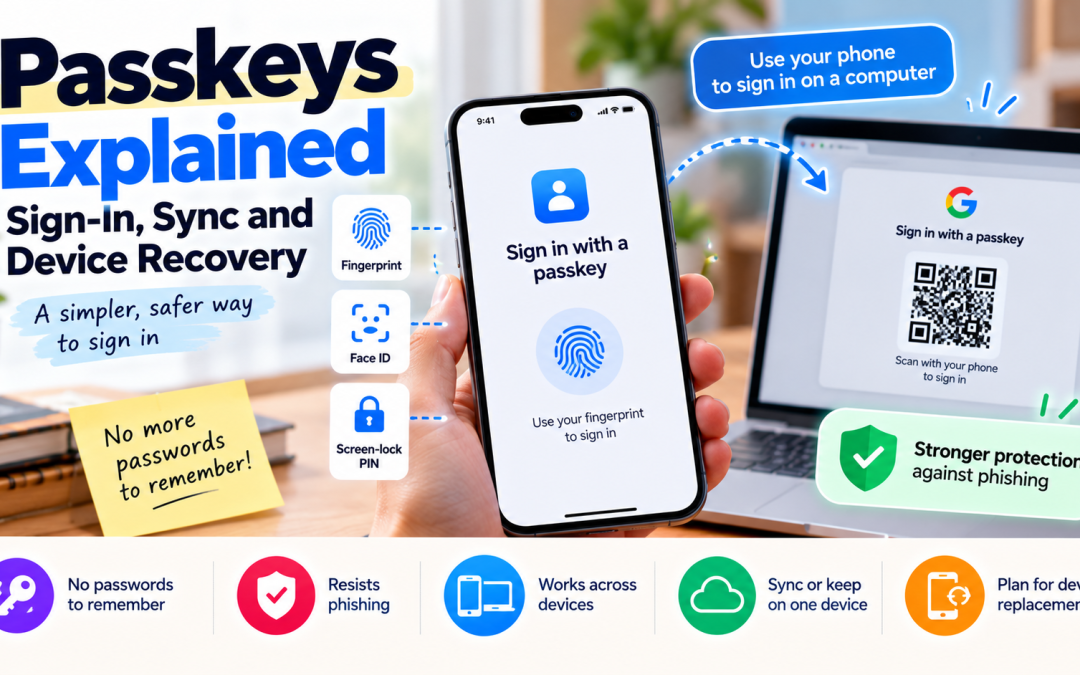
Signing into an app should be a small task. Yet forgotten passwords, verification codes and repeated resets can turn it into an interruption. Passkeys offer a different approach: approve a sign-in using your device’s fingerprint reader, face recognition or screen-lock PIN.
The appeal extends beyond convenience. Passkeys are designed to resist phishing, and they remove the need to invent and remember a password for each supported account. However, understanding where a passkey is saved matters—particularly when replacing a phone or moving between operating systems. FIDO Alliance
What happens when you use a passkey?
A passkey uses a pair of cryptographic keys. The website or application stores the public key, while the private key remains protected by your device or passkey provider.
During sign-in, your device proves that it holds the private key by digitally signing a challenge. The service checks that signature against its public key. You approve the process through the device’s unlock mechanism, rather than typing a reusable password into the website. Microsoft Support
That means the familiar fingerprint prompt is authorising a different process behind the scenes. Google also confirms that biometric information used for fingerprint or face unlock stays on your device and is never shared with Google. Google Account Help
Why phishing resistance matters
A convincing fake login page can persuade someone to type a password. Passkeys change that interaction because they are connected to the website or application for which they were created.
Google’s Chrome documentation explains that a passkey cannot authenticate to a fraudulent substitute for its intended service. This protection is built into how passkey sign-in works, rather than depending entirely on the user spotting an imitation page. Google Chrome Help
Keep the benefit in perspective: it protects authentication. Continue checking unexpected messages and account activity, and avoid treating a successful login as proof that every subsequent request is trustworthy.
Know where your passkeys live
There are two important categories. Synced passkeys can become available across devices through a passkey provider. Device-bound passkeys stay on a particular device, which may be a computer or a physical security key. FIDO Alliance
Microsoft’s documentation distinguishes between saving a passkey in a synced password manager, on a phone or tablet, on a security key, or locally on a Windows device through Windows Hello. Those choices affect how you will sign in elsewhere. Microsoft Support
On Apple devices, passkeys can sync through iCloud Keychain, which uses end-to-end encryption. On Android, supported password managers can save and sync passkeys. Check which provider the creation prompt selects before approving it. Apple Support (IE)
Your phone can help you sign into a computer
A passkey does not always need to be stored on the computer you are using. FIDO’s cross-device authentication allows a nearby phone to approve a sign-in on another device through a QR-code process. FIDO Alliance
For Google accounts, the documented process displays a QR code on the computer, which you scan with your phone before approving the sign-in. Bluetooth must be enabled for this method. Google Account Help
This can be useful when your usual credential is on your phone. Follow the sign-in flow from the service you deliberately opened, and read the approval prompt before confirming.
Plan for a replacement or lost device
Before retiring a phone, test access on its replacement. Synced passkeys depend on access to the relevant provider, while a device-bound credential will not simply appear on the new hardware.
FIDO explains that changing platforms may involve using a compatible provider, signing in with the old device and creating a new passkey, or following the service’s account-recovery process. FIDO Alliance
Keep recovery details current. Google says adding a passkey does not remove existing authentication or recovery factors. If a device is lost or stolen, its guidance directs users to remove the affected passkey from their account. Google Account Help
Start with one account
Choose a supported service and create a passkey on a device you personally control. Google specifically advises against creating one on a shared device: someone able to unlock it may gain account access. Google Account Help
Then test signing in again, identify the storage provider and review recovery options. Not every app or website supports passkeys, so adoption can happen gradually. Android Help
A little preparation makes the transition useful: fewer passwords to type, stronger protection during sign-in and a clear route back into your accounts when your devices change.